The Chart of Accounts - General Ledger Setup allow you to organize your different accounts within Mifos X. Accounts can be organized into Header and Detail(sub) accounts. Using respective account types: Asset, Equity, Expense, Income and Liability.
From the main screen click on Accounting, this will launch the Accounting menu.
Select Chart of Accounts.

How to Navigate?
Navigate to Accounting>>Chart of Accounts

| Note |
|---|
Accounts usage is divided into Header |
accounts and Detail |
accounts. You could start creating with Header and then by sub-ledger account under that. When setting up your accounts it is advisable to do them one at a time. For example create all of your Header accounts for Assets and then set up all Detail accounts for Assets as well. Follow the same sequence for other account types i.e Equity, Expense, Income and Liability accounts as well. |
Create your Header Accounts
How to Create GL Account?
- From the Chart of Accounts page click the
 button at the top-right of the screen.
- Select the Account Type the Account name.
Ex: Cash & Bank from the drop-down menu.
Next fill in the optional information on right side of the screen if you choose to do so - Type the GL(General ledger) Code.
Ex: 10000 - Select Header from from the Account Usage drop-down menu.

- Select a Parent from the drop-down menu,if required.
- Type the Account name.
Ex: Cash & Bank - Check the check box, if you want to enable - Manual Entries are allowed.

- Select the Account Type from the drop-down menu.
Next fill in the optional information on right side of the screen if you choose to do so - Select a Tag from the drop-down menu.Select a Parent from from the drop-down menu,if required.
- Type a Description in in the text box provided.


10.Click Submit. 
Create your Detail(Sub-ledger) Accounts
- From the Chart of Accounts page, click onbutton at the top-right of the screen.
Or you could also create from the Header account page, by clicking on button.
 - Type the Account name.
- Type the GL Code.
- Select Detail from the Account Usage drop-down menu.
- Check the check box, if you want to enable - Manual Entries are allowed.

- Next fill in the optional information on right side of the screen if you choose to do so.
- Select the Account Type from the drop-down menu.
- Select a Tag from the drop-down menu.
- Select a Parent from the drop-down menu.
- Type a Description in the text box provided.
Click Submit.
Overview of General Ledger Accounts
Once you have navigated to the Chart of Accounts page, you will be presented with a chart of all accounts being used by your organization. You may filter the results by typing in the Filter by Account/GL Code/Account type field. Alternatively you may view this chart in a Tree View - please see the View Chart of Account (Tree View) section below to learn about this.

View Chart of Accounts (Tree View)
There is an alternative way to view your accounts - using the Tree View. From the Chart of Accounts page click the the blue Tree View button at the top-right of the screen.

You will be taken to a new screen, stilled called chart of accounts - but it will only have one entry, with a small '+' sign on the left:
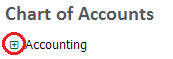
Click on the '+' sign expand the tree. A typical result may look like the one seen below. This is an effective way to examine the structure of your organization's accounts within the Mifos system.

Edit, Disable or Delete an Existing Account
You may edit, disable or delete an existing account by accessing its detail screen. Do this by clicking on an account in the chart of accounts screen. Locate the account you would like to edit and click on it - it will be highlighted in blue when the cursor is hovering over it:

Once you have clicked on the desired account you will be taken to a detailed screen for that account. An example of this can be found below, please note the three blue buttons on the right of the screen.

To Disable the selected account, click the blue Disable button at the top-right of screen. To re-enable it, click the button again.
To Delete the selected account, click the blue Delete button at the top-right of the screen. This will launch a pop-up window - click the blue Confirm button to complete deletion of the account.
To Edit the selected account, click the blue Edit button at the top-right of the screen. This will launch the Edit GL Account page:

Make the necessary changes, then click Submit.
Related articles
| Filter by label | ||||||||||||||||||
|---|---|---|---|---|---|---|---|---|---|---|---|---|---|---|---|---|---|---|
|
| Panel | ||||||
|---|---|---|---|---|---|---|
On this page:
|