Describe this functionality and why an organization would use it (i.e. the business requirements).
On this page: |
Associated Workflows (if applicable) - list out and describe.
Available Actions: for each one - create as H3 level-header (will show in page-level table of contents) and for each one, include the following this is applicable. List these out and then for each one, do the following:
Manual Journal Entries vs. Automated Portfolio Postings
Can describe how majority of accounting entries occur automatically based on the product-level settings that configured in <LINK to loan or savings product creation> but Mifos X also supports manual journal entries against any general ledger account.
See also Loan Integration With Accounting
For each action, provide a short description, add the steps involved, include any relevant screenshots:
- Insert your steps.
You can also copy and paste or drag and drop images into your instructions.
Field Name (attribute) Description Example Validations (if applicable)
Single journal entries
To add a credit or debit journal entry, do the following:
- On the Mifos toolbar, click Accounting to open the Accounting menu.

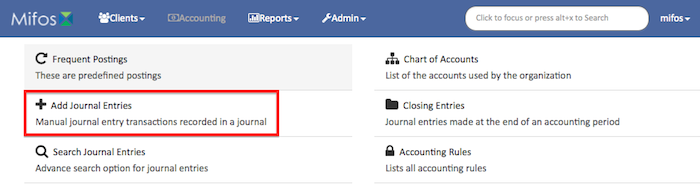
- On the Accounting menu, click Add Journal Entries to open the Add Journal Entry dialog box.
- In the Add Journal Entry dialog, enter your journal entry details:
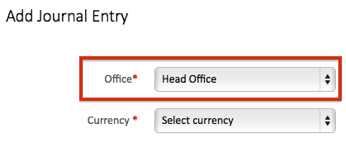
NOTE: Items with a red asterisk (*) are required.- In the Office list, select the office where you want to add the journal entry.
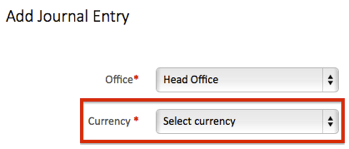
- In the Currency list, select the currency of the transaction.
- Under Affected GL entries, do one of the following:
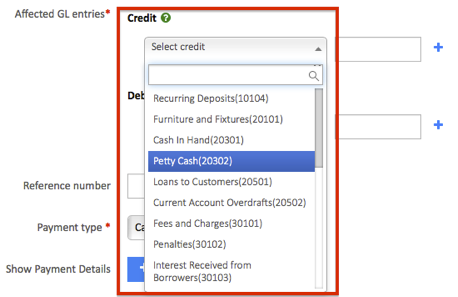
- To add a single credit entry to your general ledger (GL)
- In the Credit list, select the credit type for the journal entry.
- In the Amount box, enter amount you want to credit.
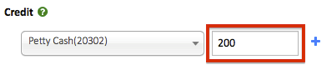
- In the Credit list, select the credit type for the journal entry.
- To add a single debit entry to your general ledger (GL)
- In the Debit list, select the debit type for the journal entry.
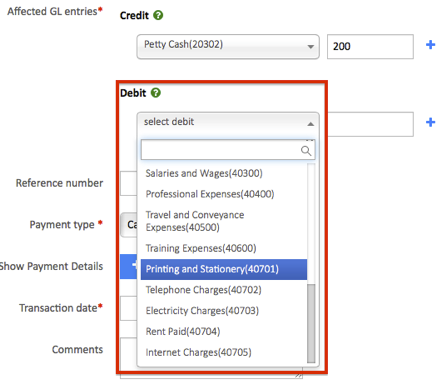
- In the Amount box, enter amount you want to debit.
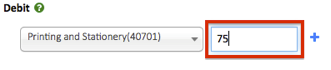
- In the Debit list, select the debit type for the journal entry.
- To add a single credit entry to your general ledger (GL)
- In the Reference number box, you can enter a reference code.
NOTE: The Reference number box is optional.
- In the Payment type list, select the payment type for the journal entry.

- Under Show Payment Details, you can enter banking details:
NOTE: Payment detail boxes are optional.- To expand Show Payment Details, click the plus button (+).

- Enter the Account#, Check#, Routing code, Receipt#, and Bank#. To collapse the Show Payment Details, click the minus button (-).
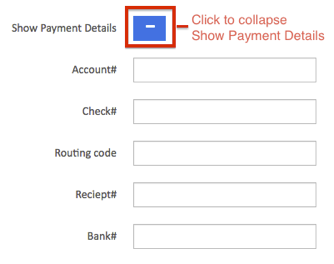
- To expand Show Payment Details, click the plus button (+).
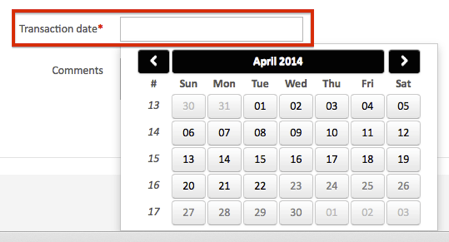
- In the Transaction date box, click in the box and then choose the date from the pop-up calendar. Use the left and right arrow keys beside the month and year to change the month.
- In the Office list, select the office where you want to add the journal entry.
- Click Submit to post your journal entry.
Compound journal entries
To add a journal entry with multiple credits or debits, do the following:
- On the Mifos toolbar, click Accounting to open the Accounting menu.
- On the Accounting menu, click Add Journal Entries to open the Add Journal Entry dialog box.
- In the Add Journal Entry dialog, enter your journal entry details:
NOTE: Items with a red asterisk (*) are required.- In the Office list, select the office where you want to add the journal entry.
- In the Currency list, select the currency of the transaction.
- Under Affected GL entries, add your journal entries:
- To add credit entries to your general ledger (GL)
- In the Credit list, select the credit type for the journal entry.
- In the Amount box, enter amount you want to credit.
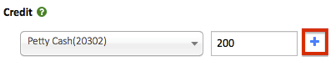
- Click the plus button (+) to add another credit to your journal entry.
- Repeat until you have entered all credits for the journal entry.
- In the Credit list, select the credit type for the journal entry.
- To add debit entries to your general ledger (GL)
- In the Debit list, select the debit type for the journal entry.
- In the Amount box, enter amount you want to debit.
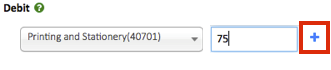
- Click the plus button (+) to add another debit to your journal entry.
- Repeat until you have entered all debits for the journal entry.
Tip: To remove a credit or debit, click the (x) button to the right of the entry you want to delete.
- In the Debit list, select the debit type for the journal entry.
- To add credit entries to your general ledger (GL)
- In the Reference number box, you can enter a reference code.
NOTE: The Reference number box is optional.
- In the Payment type list, select the payment type for the journal entry.
- Under Show Payment Details, you can enter banking details:
NOTE: Payment details are optional.- To expand Show Payment Details, click the plus button (+).
- Enter the Account#, Check#, Routing code, Receipt#, and Bank#. To collapse Show Payment Details, click the minus button (-).
- To expand Show Payment Details, click the plus button (+).
- In the Transaction date box, click in the box and then choose the date from the pop-up calendar. Use the left and right arrow keys beside the month and year to change the month.
- In the Office list, select the office where you want to add the journal entry.
- Click Submit to post your journal entry.
|
| You may also want to use visual panels to communicate related information, tips or things users need to be aware of. |
Related articles
Related articles appear here based on the labels you select. Click to edit the macro and add or change labels.